

Sometimes you want to queue for VALORANT without being bombarded with party invites and messages from friends. However, Riot doesn’t offer a built-in option, so players often rely on workarounds like Deceive or Windows Firewall rules to hide their online presence every time they launch the game.
This guide provides step-by-step instructions to appear offline in VALORANT, helping you avoid interruptions and maintain maximum focus during your ranked matches. At the end, we’ll also share important safety considerations and best practices to keep you safe while using them.
Methods To Appear Offline In VALORANT
Because there’s no official feature to appear offline in VALORANT, you’ll need a workaround to hide your online status. Without it, your status will automatically appear online whenever you launch the game.
Currently, there are only two methods to mask your online presence without negatively affecting your gameplay:
- (i) using a third-party app to intercept the connection to Riot’s social servers, or
- (ii) using a Windows Firewall rule to block outgoing connections to the chat server.
Using Deceive
Deceive is a free third-party app used to mask your online status in Riot games (VALORANT, League of Legends, Legends of Runeterra, and 2XKO).
It works by routing the Riot Client’s chat connection through a local proxy, intercepting the XMPP presence data sent to Riot’s social servers, and modifying it from “online” to “offline.” This allows gameplay to function normally while your friends list shows you as offline.
Importantly, Deceive only blocks social server connections and does not modify any game files. To use it to hide your online status in VALORANT, follow these steps:
- Download Deceive.exe from the official GitHub page.
- (Optional) Create a shortcut so it’s easier to launch every time you want to appear offline.
- Right-click the executable or shortcut and select Properties.
- Go to the Shortcut tab.
- In the Target field, add “
valorant” (without quotations, see below) at the end.
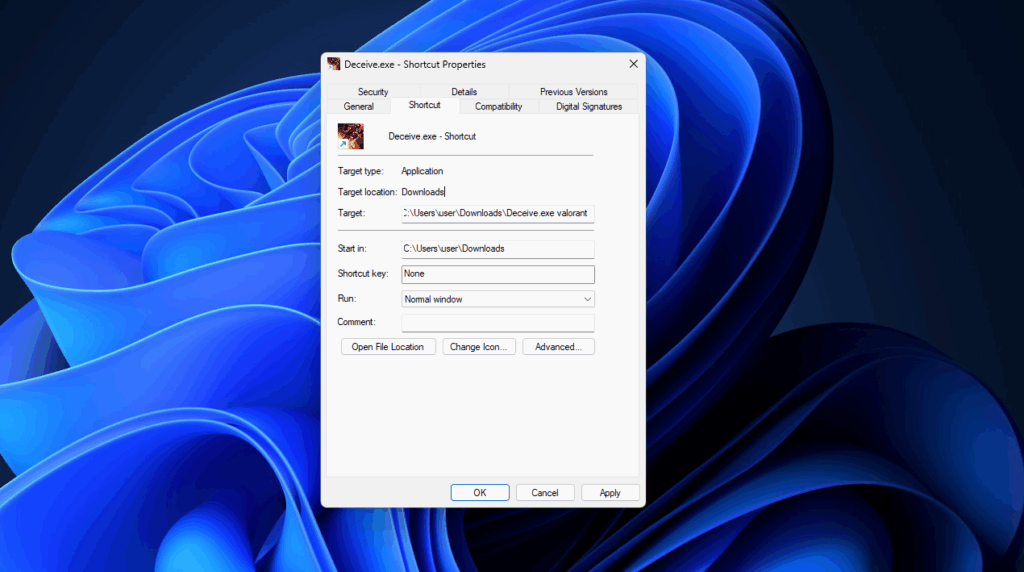
- Click Apply and close the window.
- Close VALORANT and shut down all Riot processes running in the background.
- Launch Deceive, then choose VALORANT from the game selection.
- (Optional) Check “Remember my decision and skip this screen on future launches.”
- Once in-game, open your friends list.
- Check for “Deceive Active” to confirm your status is hidden.
- Play normally and avoid unwanted chats and party invites
Note: When you launch Deceive, Windows may display a security warning that the app is unrecognized or untrusted. If you feel comfortable, click “More info,” then “Run anyway” to continue.
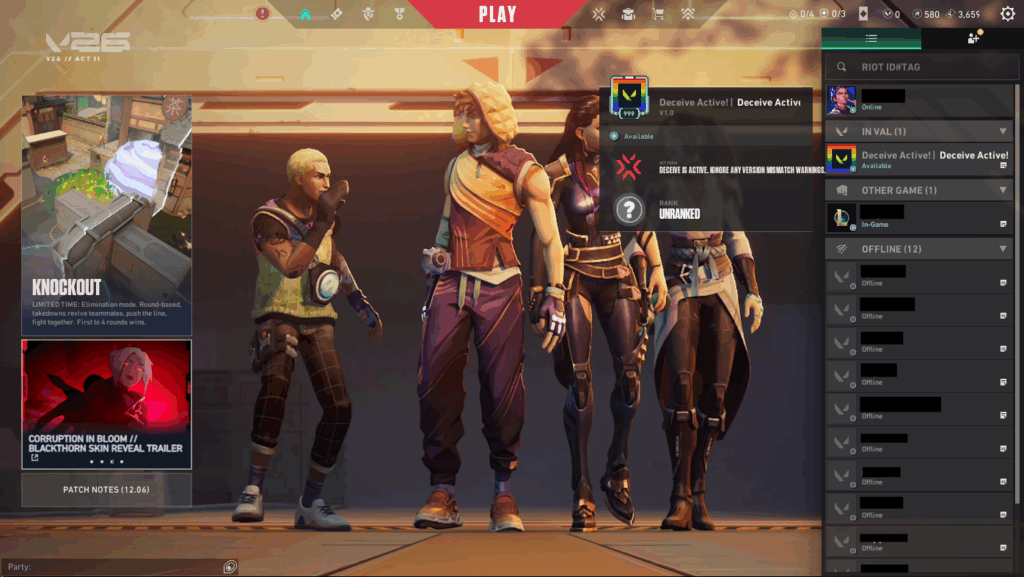
While Deceive is active, your friends list will still work as normal, but other players won’t be able to invite you, even if they enter your name manually. You can also talk in lobbies, but your global presence will remain hidden.
VALORANT must always be launched through Deceive for the status masking to remain active. If the app does not work, try running it as an administrator or check for updates in case a patch has broken its functionality.
It’s worth noting that Riot developer Sargonas has confirmed that using Deceive will not result in a ban, but the tool may stop working at any time — either intentionally or unintentionally — as some product owners oppose players appearing offline.
Using Windows Firewall (CMD)
If you prefer not to download or install third-party programs, you can also appear offline in VALORANT by configuring Windows Firewall to block outgoing traffic to Riot’s chat server.
An important distinction is that this method does not interact with game files at all. Thus, it carries practically zero risk of a ban, making it the preferred option. It simply creates a rule that blocks traffic on TCP port 5223, which the Riot Client uses for chat and social presence, preventing Riot from updating your online status.
Similar to Deceive, you’ll still be able to connect to gameplay servers normally, but your friends list, invites, and status information will stop working. Here’s how to set it up:
- Press the Windows key to open the Start menu.
- Type “
cmd” (without quotation marks) to search for the Command Prompt. - Right-click on it and select Run as administrator.
- Type the following command below, then press Enter to run.
netsh advfirewall firewall add rule name="lolchat" dir=out remoteport=5223 protocol=TCP action=block
This will create a firewall rule named “lolchat” that blocks all outgoing TCP traffic on port 5223.
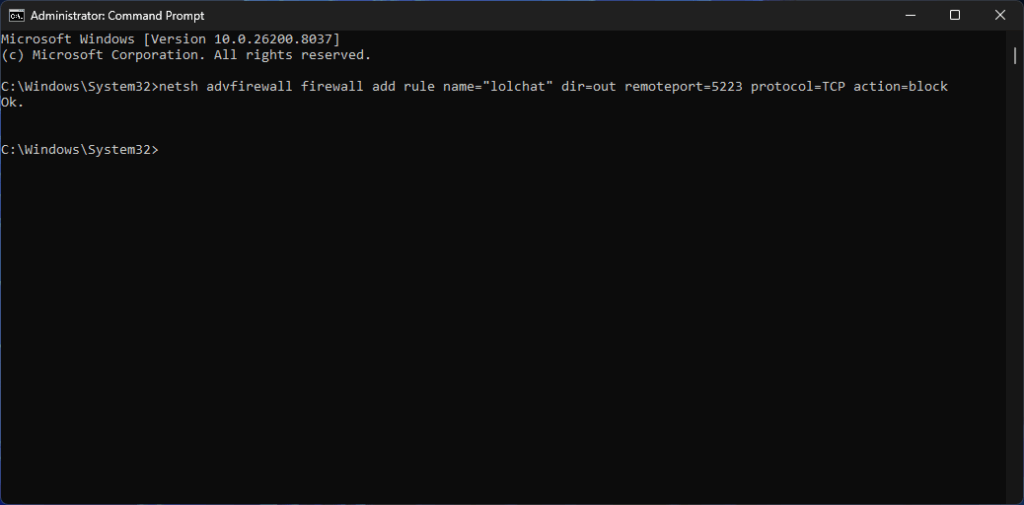
Once the rule is active, your game client should no longer connect normally to Riot’s social or chat service, making you appear offline in VALORANT while regular gameplay functions as normal. Now, simply launch the game and queue for Unrated, Competitive, or any other game modes as usual.
How To Reverse The Windows Firewall Rule
To restore regular chat functionality and online visibility in VALORANT, simply repeat the same steps and enter the following command into the Command Prompt to delete the firewall rule:
netsh advfirewall firewall delete rule name=”lolchat”
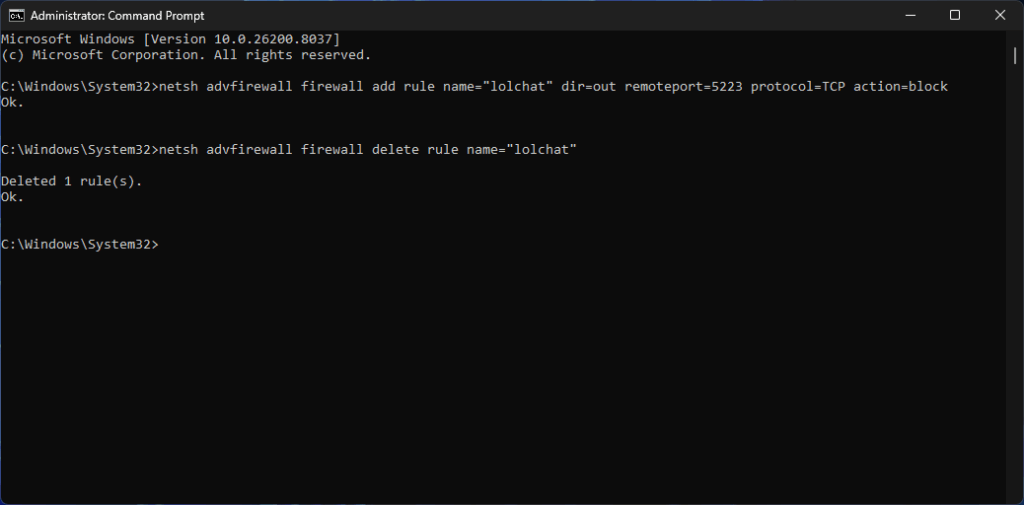
Note: You must run Command Prompt as an administrator to both create and delete the firewall rule, or the method might not function properly.
Safety Precautions And Best Practices
Each workaround used to appear offline in VALORANT carries risk — and it’s important to understand them before you proceed.
The Windows Firewall method is generally considered the safest approach to hide your online status because it doesn’t interact with the Riot Client or modify any game files. It simply creates a rule that blocks the network port used for chat. It also doesn’t rely on third-party apps, making it both reversible and low risk.
By contrast, Deceive intercepts connection data between your client and Riot’s servers. Although it’s widely used without reported bans, there’s still some risk. Riot could change its policies at any time, and downloading the tool from an untrusted source could expose you to malware.
Best Practices To Stay Safe
You can follow these simple precautions to minimize risk, avoid technical issues, and ensure your account remains secure while using workarounds to appear offline in VALORANT.
- Only download third-party programs from official or trusted sources.
- Avoid using modified builds or mirror downloads of Deceive without prior verification.
- Close VALORANT and all related Riot programs before applying either method.
- Run the Command Prompt as an administrator to create or remove the firewall rule.
- Confirm the workaround is active by checking your online status on your friends list.
- Remove the firewall rule to restore normal chat functionality.
- Don’t use multiple methods to hide your online status at the same time.
- Always re-check the method works after VALORANT or Riot Client updates.
- If something breaks, disable the workaround and relaunch the game normally.
Deceive is the simpler option, while the Windows Firewall method is typically preferred if you want the lowest possible risk. Just remember, neither approach is officially endorsed by Riot nor entirely risk-free.
There is also no guarantee they will always work, as Riot product owners oppose players hiding their online status.
Frequently Asked Questions On Appearing Offline In VALORANT
Need more help? Here are answers to frequently asked questions (FAQs) about appearing offline in VALORANT.
Does VALORANT Have An Official Appear Offline Option?
No. VALORANT does not currently include a built-in feature to appear offline. Your status is automatically shown as Online when you’re playing, Away if you’re idle, and Offline only when you’re not connected to the Riot Client.
What Is Deceive And How Does It Work?
Deceive is a third-party app that blocks and intercepts the connection between your PC and Riot’s social servers. It works by routing traffic through a local proxy to hide your status while gameplay remains unaffected, allowing you to queue and play normally while appearing offline to friends.
How Do I Download And Install Deceive To Appear Offline?
You can download Deceive from the official GitHub. No installation is required. Simply execute the file and launch VALORANT through the app to hide your presence.
How Can I Verify If The Offline Mode Is Active?
Once you launch VALORANT through Deceive, open your friends list and look for a contact named “Deceive Active.” It appears as a friend entry on your list, confirming that the tool is running and that your online status is hidden.
Will I get banned for using Deceive?
Unlikely. Deceive has been widely used without reported bans, and a Riot developer has stated it will not result in a ban. However, it is still a third-party tool, meaning there’s a small risk of policy changes or you downloading a compromised version from an untrusted source.
Always practice Responsible Gambling and check out our latest promo offers and boosts. T&Cs apply. 18+ to play.