
There’s nothing more frustrating than when VALORANT refuses to open. You’re ready to queue for a ranked game, only to be met with a black screen and a vague “Failed to Launch: Something unusual happened…” error message offering practically zero guidance.
While most launch problems are easy to fix, it’s usually a nightmare to identify the root problem. With that in mind, this guide will explain every possible reason VALORANT won’t open and provide quick, practical steps to get you right back in the action.
Why Doesn’t VALORANT Open? (Immediate Snapshot)
There are many possible reasons why VALORANT isn’t launching, but the issue is almost always because of the Riot Client, the Vanguard anti-cheat system, or your Windows setup.
Most problems occur right after a major patch or Windows update, as it’s typically when files get corrupted or security settings change. When this happens, the game might immediately crash on launch, throw vague error messages, freeze on the loading screen, or outright refuse to open.
Sometimes the issue is a stuck Riot process, though more complicated reasons like missing files, driver conflicts, or account restrictions can also explain why VALORANT is not launching. Even so, the game may not display an error message, making it more challenging to identify the underlying problem.
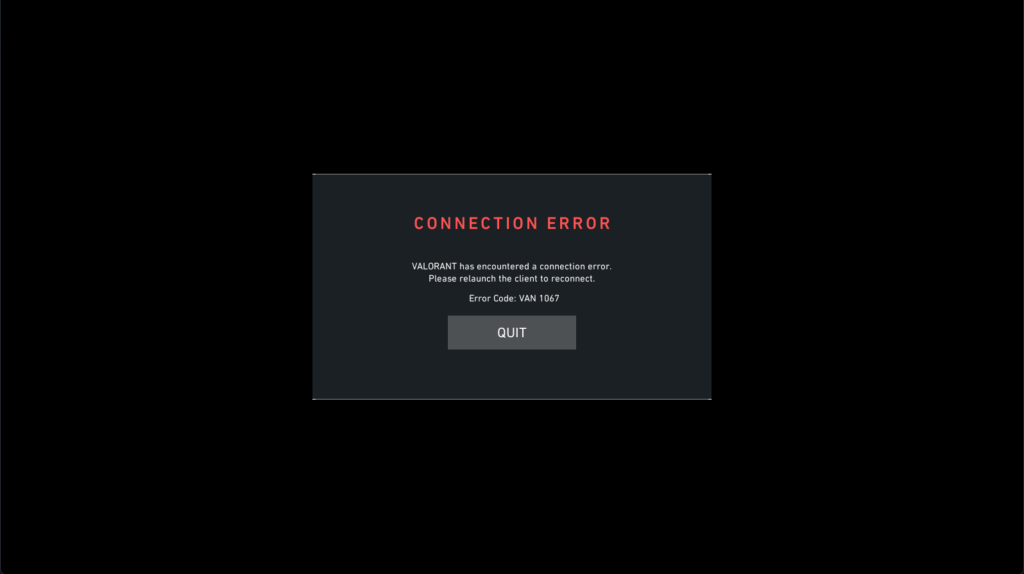
Here are some of the most common reasons for VALORANT not opening:
- Corrupted or missing game files after an update or patch
- Riot Vanguard anti-cheat issues (e.g., VAN 57)
- Stuck Riot or VALORANT background processes
- Missing Windows updates or outdated graphics drivers
- Antivirus or firewall software blocking critical game files
- Administrator permission issues restricting proper file access
- Overlay software, third-party booster apps, or conflicting background programs
- Network connectivity problems stopping Riot services from verifying the game
- Disabled Windows 11 security settings (e.g., Secure Boot or TPM 2.0)
- Insufficient available RAM or other system resource limitations
Fast Fixes When VALORANT Not Opening
While VALORANT launch problems are all too common, most issues can be fixed in a few minutes. Here are some practical solutions you can try.
#1. Quick Restart And Permissions
As simple as it seems, restarting your PC is usually enough to fix VALORANT launch failures or random error codes.
Not only is it quick and easy to do, but it instantly shuts down broken Riot services, terminates stuck background processes, and clears out conflicting apps that might be preventing the game from launching properly. As a reminder, for Windows, don’t use the inbuilt restart – Shutdown your PC, then turn it back on.
Once your PC is back on, try to launch VALORANT as an administrator. Though it’s not required, it will ensure the game has enough permissions to run critical game files, services, and Riot dependencies. To do this, simply:
- Right-click on VALORANT from your desktop.
- Click on “Run as administrator.”
- Select “Yes” when the User Account Control pop-up appears.
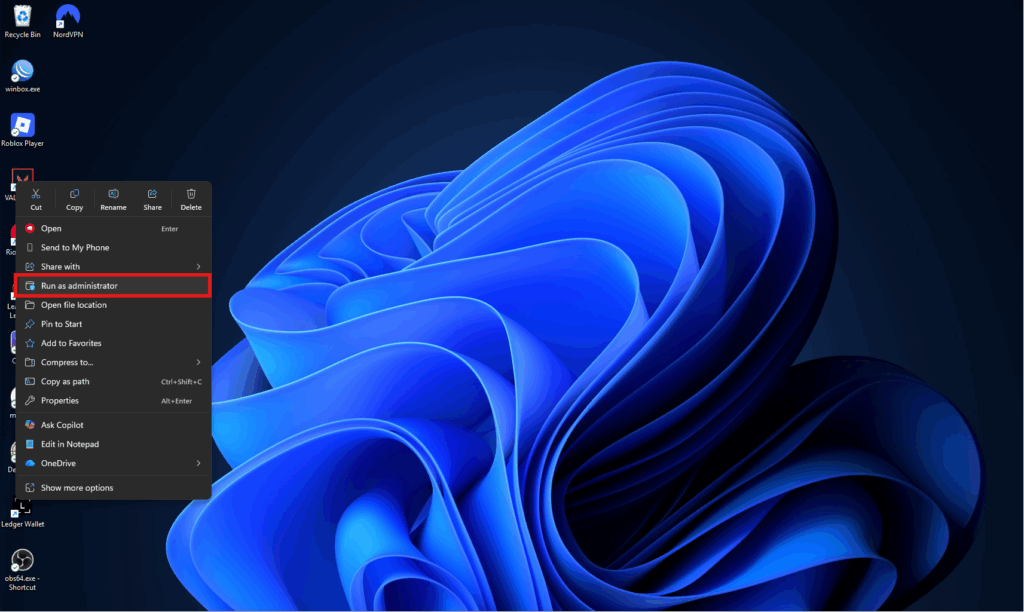
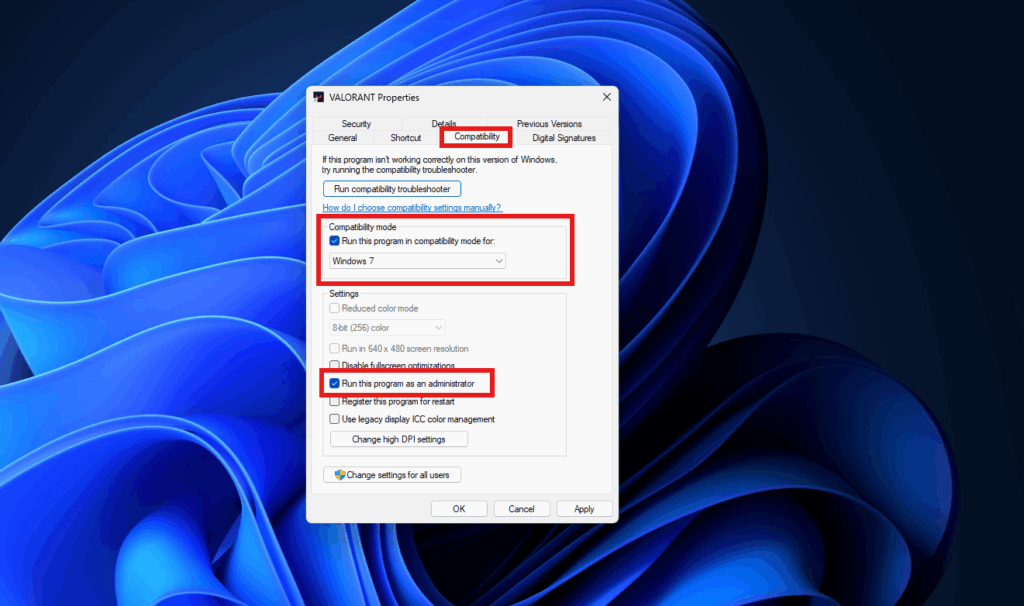
If that resolved the problem, you can force VALORANT to run as an administrator by default by doing the following:
- Right-click on VALORANT from your desktop.
- Click “Show more options” > “Properties.”
- Go to the “Compatibility” tab.
- Check “Run this program as an administrator.”
- (Optional) Check “Run this program in compatibility mode for Windows 10.”
- Click on “Apply” and “OK.”
- Launch VALORANT.
Pro Tip: If your entire PC freezes, you can force a shutdown by pressing Ctrl+Alt+Del to open the security screen. From there, click the power icon in the bottom-right corner and select “Shut Down.”
#2. End Problem Background Processes
Another reason VALORANT fails to launch is when Riot-related processes from a previous session are still running in the background. These “ghost” tasks are usually caused by the game not being shut down properly and can silently trigger crashes or prevent new instances of VALORANT from opening.
To fix it, you’ll instead have to terminate all Riot processes manually via the Task Manager:
- Press Ctrl+Shift+Esc to open Task Manager.
- Go to the “Processes” tab.
- Look for VALORANT or any other Riot-related processes, such as:
- VALORANT.exe
- RiotClient.exe
- RiotClientServices.exe
- RiotClientCrashHandler.exe
- BootstrapPackagedGame.exe
- RiotClientUx.exe
- RiotClientUxRender.exe
- Select each process individually, then click the “End task” button.
After closing all previous instances, any stuck or conflicting processes should be cleared. From there, you can reopen the Riot Client and try launching VALORANT again.
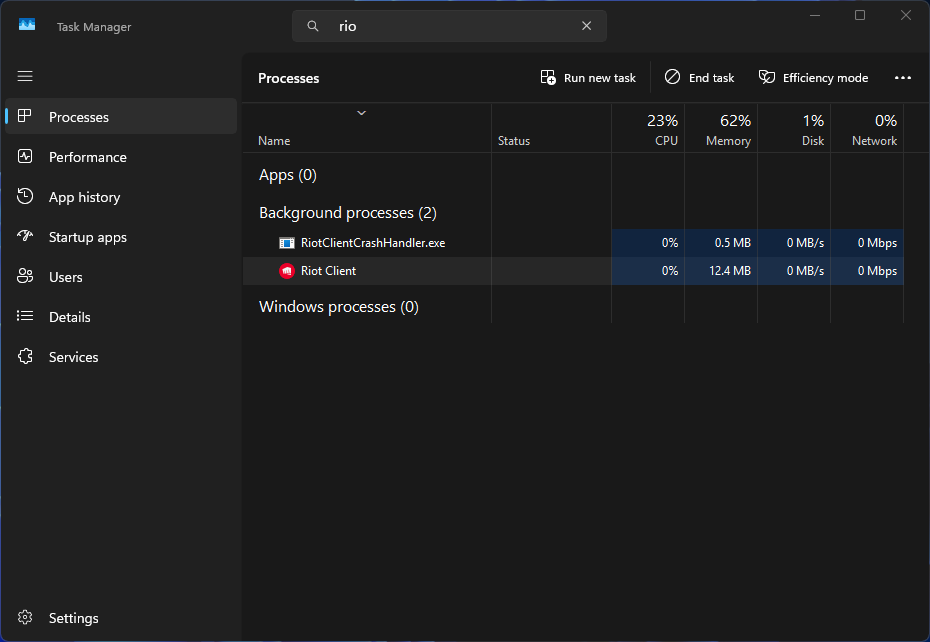
Note: Avoid closing Riot Vanguard processes (vgc.exe and vgm.exe) unless it’s absolutely necessary. Since Vanguard operates at the kernel level, force-closing related processes will prevent VALORANT from launching again until you fully restart your PC.
#3. Check System Requirements And Updates
If VALORANT still won’t open, try verifying that your PC meets the minimum system requirements and check if Windows is fully updated. Missing an update, outdated drivers, and insufficient RAM can all explain why VALORANT is not launching, especially after a major patch drops.
To check your PC meets the minimum requirements to play VALORANT, follow these steps:
- Right-click on the Start menu.
- Select “System” to bring up your PC’s technical details.
- Compare your hardware configuration against the specifications in the table below.
| Minimum Specs(30 FPS) | Recommended Specs(60 FPS) | High-End Specs(144+ FPS) | |
| OS | Windows 10 (Build 19041+) or Windows 11 64-bit | ||
| CPU | Intel i3-540 or AMD Athlon 200GE | Intel i3-4150 or AMD Ryzen 3 1200 | Intel i5-9400F 2.90GHz or AMD Ryzen 5 2600X |
| GPU | Intel HD 4000 or AMD Radeon R5 220 | NVIDIA GeForce GT 730 or AMD Radeon R7 240 | NVIDIA GTX 1050 Ti or AMD Radeon R7 370 or Intel Arc A310 |
| RAM | 4 GB | ||
| VRAM | 1 GB | ||
| Storage | 45–55 GB | ||
| Additional Requirements | SSE 4.2 or AVX Support(Windows 11) TPM 2.0 and UEFI Secure Boot | ||
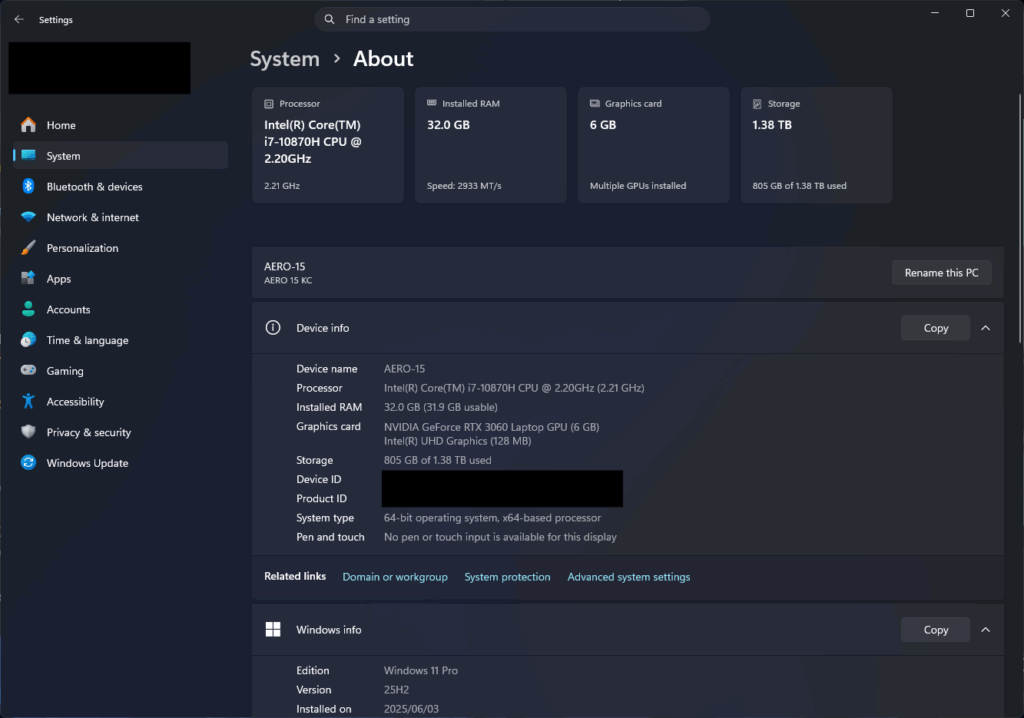
It’s rare, but operating system updates can sometimes prevent VALORANT from launching properly, and the reason is almost always linked to Riot Vanguard.
Riot Vanguard operates at the kernel level and closely monitors system processes for cheats or tampering. After major Windows updates, security changes or corrupted drivers can sometimes trigger false conflicts that prevent VALORANT from launching properly.
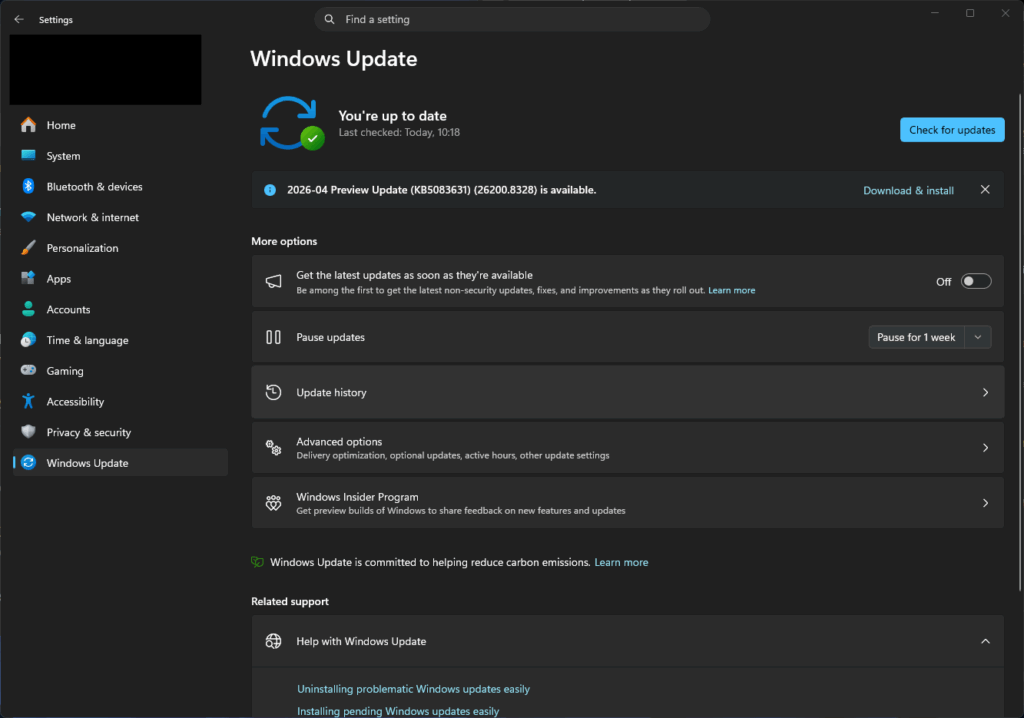
To check for any pending Windows updates, do the following:
- Open the Settings menu.
- Go to “Windows Update.”
- Click on “Check for updates.”
- Download and install all available updates.
- Restart your PC.
Note: If you’re a Windows 11 user, double-check that TPM 2.0 and Secure Boot are enabled. Riot Vanguard relies on these security features to detect tampering. If either setting is disabled in the BIOS, VALORANT will outright refuse to open.
#4. Repair Missing Or Corrupted Files
As discussed previously, VALORANT won’t launch if critical game files become corrupted, damaged, or go missing. This can happen for many reasons, including an unstable network connection during installation, failed updates or hotfixes, or even conflicts with background applications that corrupt or overwrite critical configuration files.
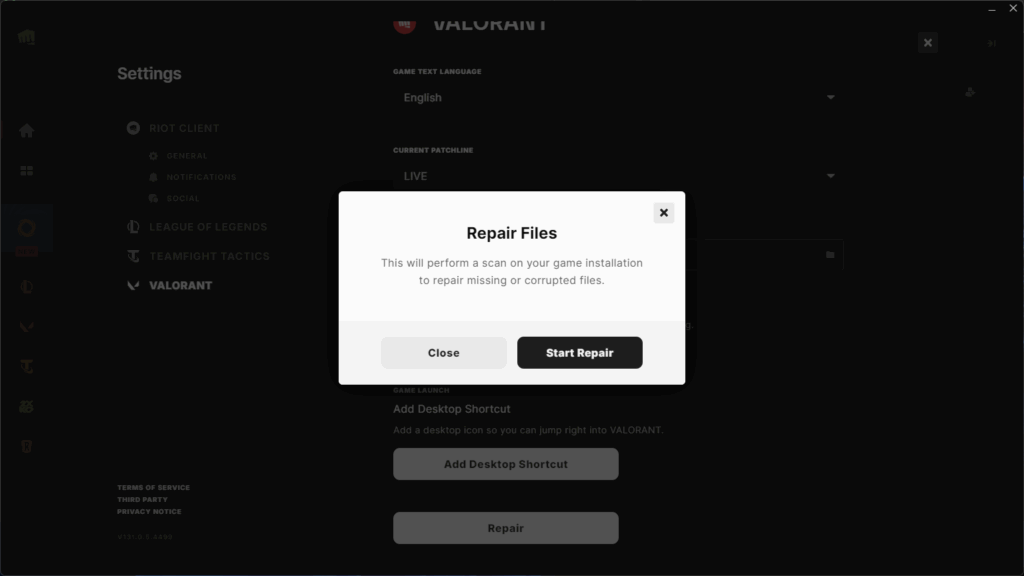
Fortunately, Riot has a built-in repair tool that can scan your installation and automatically replace damaged files without requiring a full reinstall. Here’s how to use it:
- Open the Riot Client.
- Click on your profile icon in the top-right corner.
- Select “Settings.”
- Select “VALORANT” > “Repair.”
- Click “Start Repair” when the pop-up appears.
Depending on the size of your installation, the repair process can take anywhere from 5 to 30 minutes to complete. When it’s done, restart your PC and launch VALORANT again.
Pro Tip: don’t use the inbuilt restart – Shutdown your PC, then turn it back on.
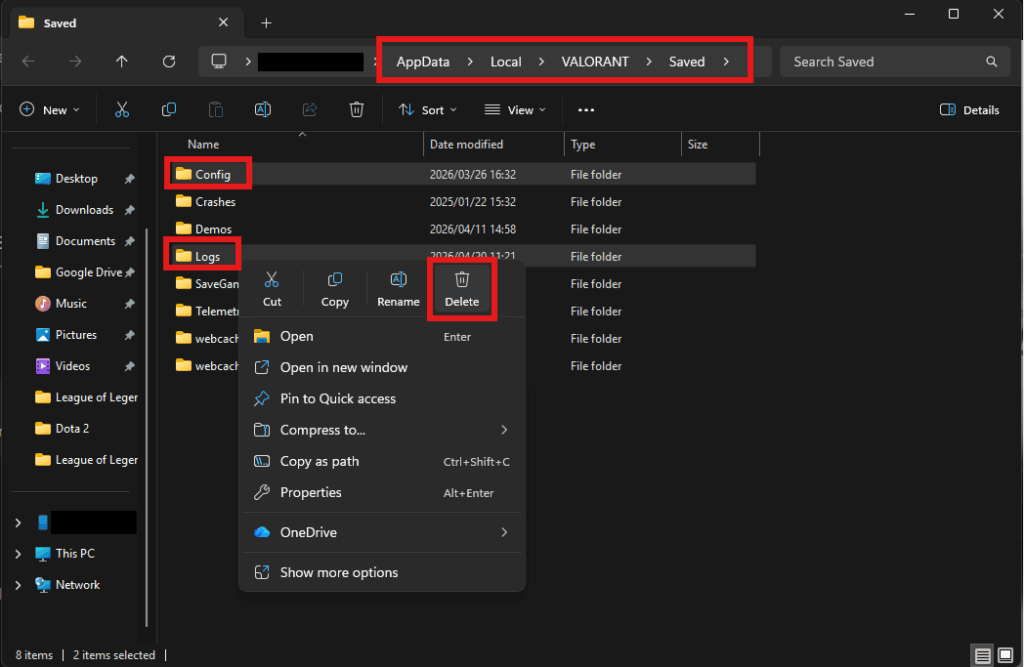
If the issue persists, then corrupted configuration files may be preventing the game from launching. To fix this, you need to clear the AppData and local cache folder.
- Press Win+R to open the Run dialog box.
- Type
%localappdata%\VALORANT\Saved% - Delete all files inside the Config and Logs folders.
- Restart your PC.
- Launch VALORANT again.
Once deleted, VALORANT will automatically download and replace any critical config files the next time you launch the game. This should resolve any crashes or launch problems caused by broken files or corrupted dependencies.
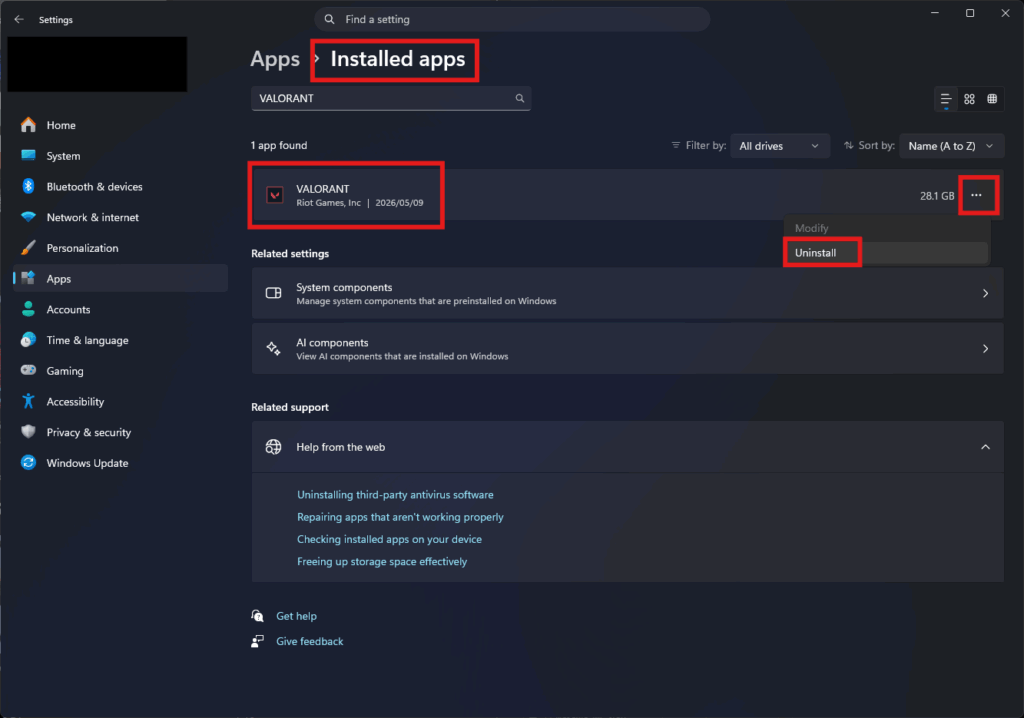
If none of these fixes works, your installation may be too damaged or incomplete to repair properly, in which case a full reinstall is your best option. Here’s what you need to do:
- Right-click on the Start menu.
- Select “Installed apps.”
- Search for VALORANT.
- Click on “···” > “Uninstall.”
- Download VALORANT from the official website.
- Run the installer and follow the prompts to reinstall the game.
#5. Fix Network And Connectivity Issues
VALORANT relies on online services to connect to Riot’s official servers and to verify game files and authenticate Vanguard services. As a result, an unstable internet connection or blocked network traffic can cause the game to freeze at launch or fail to start entirely.
To rule out possible connectivity issues, restart your router to reset your internet connection. If that doesn’t work, confirm that:
- No VPNs, proxies, or rerouting services are interfering with the connection.
- Your firewall is not blocking Riot or Vanguard services.
- Your internet connection is stable and not dropping packets.
- Riot services are not experiencing outages via the Riot Status page.
Pro Tip: A wired connection, instead of Wi-Fi, can drastically improve network stability and reduce the likelihood of start up failures related to a poor internet connection.
#6. Update Graphics Drivers
Outdated or incompatible graphic drivers are a major source of VALORANT launch failures. Graphics drivers act as a communication layer between the operating system, graphics card, and game engine. They also include critical bug fixes and optimizations to avoid crashing. However, outdated or unsupported drivers can cause VALORANT to crash on start up.
Older graphics cards are especially vulnerable, as manufacturers like NVIDIA, AMD, and Intel may not release new driver updates. This increases the risk of bugs and compatibility issues. That said, it’s important to keep your graphics drivers updated, especially after a major patch or OS upgrade.
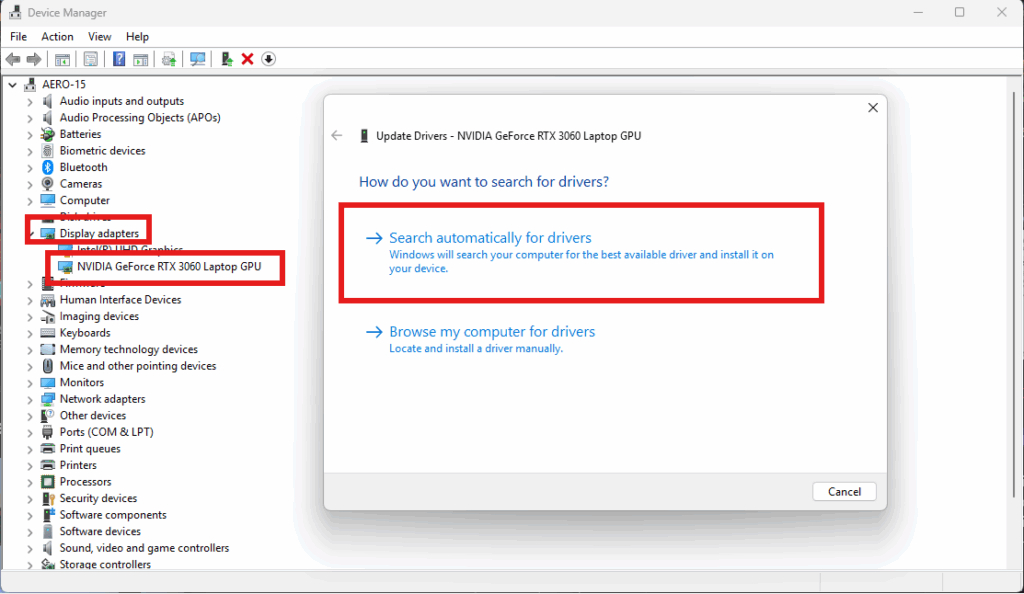
Here’s how to update your graphics drivers manually:
- Right-click on the Start menu.
- Select “Device Manager.”
- Expand “Display adapters” and then right-click on your GPU.
- Select “Update driver.”
From there, select “Search automatically for drivers” if you want Windows to look for and install available updates. Alternatively, you can click on “Browse my computer for drivers” if you have already downloaded the latest driver files from the manufacturer’s official website.
Note: If you are unsure which drivers are outdated, third-party tools like Driver Easy can automatically scan your system and detect missing or outdated GPU drivers.
Diagnosing Persistent VALORANT Launch Problems
If VALORANT refuses to launch even after trying the previous fixes, then the problem is likely linked to a deeper system-level conflict. Here are some things you can do to diagnose persistent launch problems.
Error Codes And What They Mean
VALORANT error codes can help you pinpoint the exact source of a launch failure. These standardized messages can quickly reveal whether the issue is tied to Vanguard, corrupted files, permissions, or Windows security settings.
For example, Error 44 and Error 45 are both caused by Riot Vanguard not initializing correctly and can be fixed by either reinstalling Vanguard or restarting your PC. At the same time, errors like Error 60 or 65 can point toward a failed patch and are resolved by restarting the Riot Client.
As a general rule, make a note of any VALORANT error codes, your Windows version, and any recent system changes (e.g., driver, antivirus, or Windows updates). This information can help Riot Support quickly figure out the problem or assist with further troubleshooting.
This table lists some of the most common VALORANT launch error codes and their solutions:
| Error Code | Description | Solution |
| 0 | Connection error | Restart VALORANT and the Riot Client. |
| 1 | Connection error | Restart VALORANT and the Riot Client. |
| 8–21 | Problems with the Riot Client | Restart the Riot Client. |
| 29 | Network issue | Allow VALORANT and its dependencies in your firewall settings. |
| 33 | The Riot Client process was closed | Restart the Riot Client. |
| 43 | A system has timed out | Restart the Riot Client. |
| 44 | Vanguard not initialized | Restart the Riot Client. If the issue persists, uninstall Riot Vanguard, then restart VALORANT. |
| 45 | Vanguard reboot required | Restart the Riot Client. If the issue persists, uninstall Riot Vanguard, then restart VALORANT. |
| 46 | Platform downtime | VALORANT is undergoing planned maintenance. Log in again later. |
| 53 | Problem with Riot Client chat | Restart the Riot Client. If the issue persists, check the Support Site banners or submit a ticket. |
| 54 | Content service failure | Restart the Riot Client. |
| 55 | ApplicationRepairManagerInitFailure | Restart the Riot Client. If the issue persists, check the Support Site banners or submit a ticket. |
| 56 | LegalInfoInitFailure | Restart the Riot Client. If the issue persists, check the Support Site banners or submit a ticket. |
| 57 | PlayerAffinityInitFailure | Restart the Riot Client. If the issue persists, check the Support Site banners or submit a ticket. |
| 58 | RSOValidationFailure | Restart the Riot Client. If the issue persists, check the Support Site banners or submit a ticket. |
| 59 | LoginQueueFetchTokenFailure | Restart the Riot Client and check the Support Site banners. |
| 60 | PatchInitFailure | Restart the Riot Client. |
| 63 | ManagerDeleted | Restart the Riot Client. |
| 64 | SessionFetchFailure | Restart the Riot Client. |
| 65 | PatchAvailabilityInitFailure | Restart the Riot Client. |
| 66 | ContentIndexInitFailure | Restart the Riot Client. |
| 67 | ChatFriendMetadataInitFailure | Restart VALORANT and the Riot Client. If the issue persists, submit a ticket. |
| 68 | CapEntitlementsFetchError | Restart the Riot Client. If the issue persists, check the Support Site banners or submit a ticket. |
| 69 | CapWalletsFetchError | Restart the Riot Client. If the issue persists, check the Support Site banners or submit a ticket. |
| 70 | StoreOffersFetchError | Restart the Riot Client. If the issue persists, check the Support Site banners or submit a ticket. |
| -81 | Service Start Failed | Restart your PC and the Riot Client. If the issue persists, uninstall Riot Vanguard and VALORANT, then perform a fresh reinstall. |
| 128 | VALORANT has encountered a connection error. Please relaunch the client to reconnect | Restart your PC and the Riot Client. If the issue persists, uninstall Riot Vanguard and VALORANT, then perform a fresh reinstall. |
| 138 | VALORANT has encountered a connection error. Please relaunch the client to reconnect | Install VALORANT and Riot Vanguard on a regular Windows installation instead of a virtual machine. |
Note: You can find many VALORANT and Vanguard error codes and their respective solutions on the Riot Support website.
Advanced Conflicts And Security Blocks
VALORANT relies on multiple dependencies to launch properly, all of which can be disrupted by conflicting third-party software.
For example, antivirus software may mistakenly quarantine critical game files or even block Riot services from running, leading to crashes, start up failures, and errors like 0xc000005. Similarly, background apps such as overlays, FPS counters, optimization tools, and VPNs can also cause conflicts.
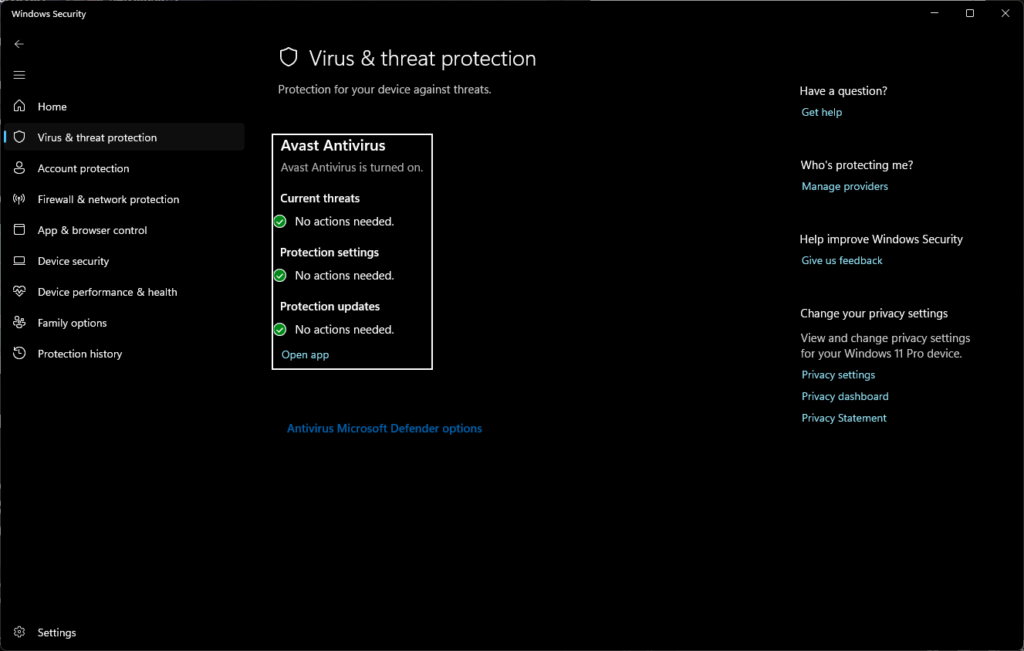
To prevent this, add both VALORANT and Riot Vanguard to your antivirus whitelist so it doesn’t accidentally block important files and services.
- Open the Start menu.
- Search for “Windows Security” and open it.
- Select “Virus and threat protection.”
- Go to “Privacy and Security” > “Windows Security.”
- Click on “Manage Settings.”
- Go to “Exclusions” > “Add or remove exclusions.”
- Click on “Add an exclusion” and select “Folder.”
- Add the following:
- VALORANT installation folder
- Riot Games folder
- Riot Vanguard folder
- Save the changes and restart your PC
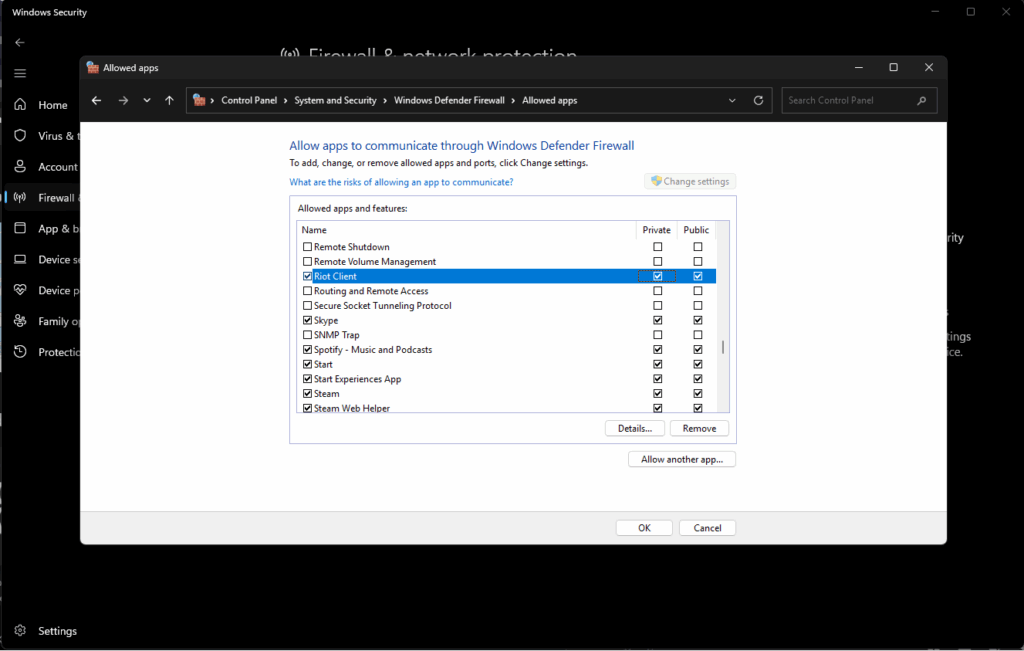
When you’re done, add VALORANT and Vanguard services to your firewall exclusion lists to avoid mistakenly blocking critical game files and Riot services.
- Open the Start menu.
- Search for “Windows Security” and open it.
- Select “Firewall and network protection.”
- Click “Allow an app through firewall.”
- Select “Change settings.”
- Click on “Allow another app.”
- Browse to and add:
- VALORANT.exe
- RiotClientServices.exe
- vgc.exe (Riot Vanguard)
- Ensure both Private and Public boxes are checked.
- Click OK to save the changes.
Administrator And Compatibility Issues
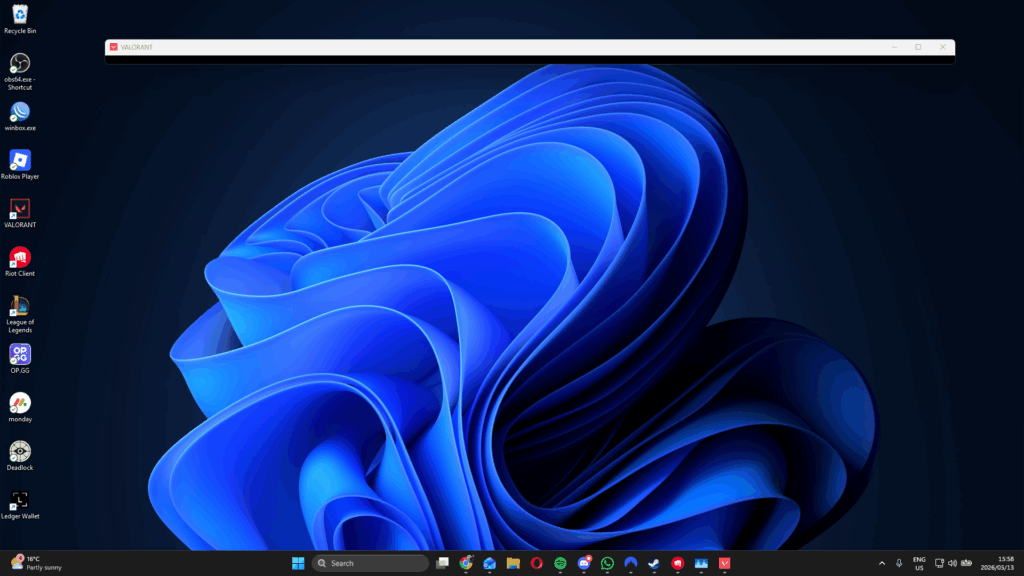
It’s not strictly required to run VALORANT as an administrator. However, taking this step can help bypass permission restrictions that may prevent the game from launching correctly.
This is because Riot Client and Vanguard anti-cheat both rely on interconnected processes to initialize VALORANT. So, if an OS update, driver, BIOS configuration, or third-party application interferes with any part of that chain, the game may fail to launch, freeze at startup, or crash unexpectedly.
This is why running the game with admin permissions or in compatibility mode can resolve launch issues, especially if you’re on an older Windows build or using outdated drivers.
Instead of fixing corrupt files, running VALORANT as an administrator grants full access and prevents protected files, directories, and services from incorrectly blocking the game. Meanwhile, compatibility mode helps bypass conflicts by emulating older Windows environments that those services might expect.
Note: On Feb. 25, 2023, Riot posted on X that it was ending support for Windows 7, 8, and 8.1 for security reasons. Therefore, we recommend only using compatibility mode for supported Windows builds.
Preventing VALORANT Launch Issues in the Future
While troubleshooting can fix most problems, regular maintenance and housekeeping can prevent the same issues from happening in the first place. This includes routinely checking for Windows and graphics drivers updates to date, especially after patches or hotfixes.
Make it a habit to run Riot’s repair tool from time to time. Even if the game appears to function normally, even small file corruptions or failed updates can become larger problems down the road.
Here are some other things you can do to reduce the risk of VALORANT launch issues in the future:
- Only run essential applications while gaming
- Avoid unnecessary overlays, boosters, or monitoring tools
- Routinely check Task Manager for stuck Riot processes
- Restart your PC after major updates or crashes
- Keep antivirus exclusions updated for VALORANT and Riot Vanguard
- Note down error codes in case you need help from Riot Support
VALORANT Not Opening FAQ
Stuck or need more help? These frequently asked questions about VALORANT launch problems should clear up any confusion.
What Should I Do If Nothing Happens When I Launch?
First, restart your PC and launch the game as an administrator, ensuring there aren’t any stuck Riot processes running in Task Manager. If that fails, fix corrupted files with the built-in Riot repair tool and install any pending Windows updates.
Why Do I Get “Error 57” Or Another Code?
VALORANT error codes typically point to a specific failure in the game’s launch protocol. For example, Error 57 (VAN 57) means that Riot Vanguard failed to initialize or isn’t functioning properly during startup.
Do I Need Admin Rights To Play?
Not exactly. VALORANT and Riot Vanguard don’t require administrator permissions to run, but enabling them can help bypass permission issues that might block access to protected files, services, and dependencies. Without it, the game may crash, freeze, or fail to launch properly.
Will Repairing The Game Delete My files?
No, Riot’s built-in repair tool only scans and replaces damaged or missing files. It will not remove your account, settings, cosmetics, or progress, making it faster and safer than reinstalling the entire game.
What Hardware And Software Requirements Must I Meet?
At minimum, you need Windows 10/11 64-bit OS, an Intel Core 2 Duo E8400 or AMD Athlon 200GE CPU, 4 GB RAM, a GPU equivalent to Intel HD 4000 or Radeon R5 200, at least 1 GB VRAM, and 45–55 GB of free storage. Windows 11 systems also require TPM 2.0 and Secure Boot enabled.
My Antivirus Blocked The Game—What Now?
To unblock the game, add VALORANT, Riot Client, and Riot Vanguard to your antivirus and firewall exclusions list. Then, restart your PC. Antivirus software mistakenly quarantines game files they deem “suspicious,” which can lead to launch failures.
Always practice Responsible Gambling and check out our latest promo offers and boosts. T&Cs apply. 18+ to play.