

The newest Thunderpick Update comes with some new changes to Same Game Combos, and the ability to turn on Web Push Notifications from Thunderpick so you never miss a beat.
Players will be given the option to receive Web Push Notifications. Those that do opt in will be able to receive Push notifications on both Mobile and Desktop, direct from Thunderpick. You’ll receive a prompt from us to opt in to push notifications.
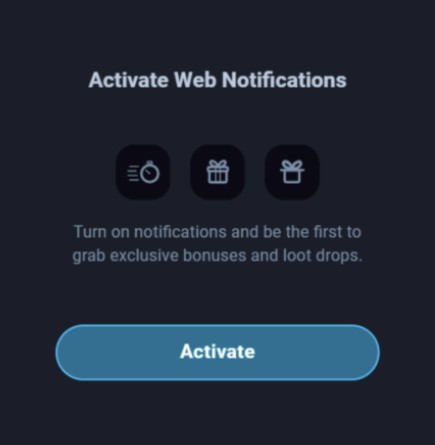
Once enabled, you’ll be able to get notifications direct to your device, be that on desktop, or mobile. If you have web browser notifications turned on in system, you can even have these notifications push to your windows notifications!
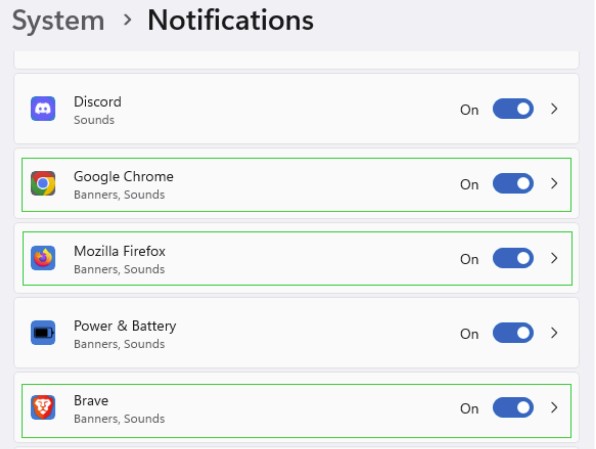
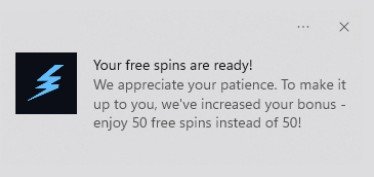
How to enable Web Push Notifications for Thunderpick on Android and Windows
Android and Windows share the same process to turn on notifications for Thunderpick. Stay up to date in 4 quick clicks.
- Log into your Thunderpick account.
- Go to ‘Notifications’ and click ‘turn on’.
- Click ‘allow’ on the pop up asking to show notifications.
- Receive real-time alerts so you’ll never miss a thing.
How to enable Web Push Notifications for Thunderpick on iOS and Mac
For Thunderpick players looking to play on Mac and iOS, the process is largely the same.
- Open and log in Thunderpick App.
- Go to ‘Notifications’ and click ‘turn on’.
- Click ‘allow’ on the pop up asking to show notifications.
- Receive real-time alerts so you’ll never miss a thing.