
Climbing the Counter-Strike 2 (CS2) ranks in Competitive or in Premier is full of thrills, but sometimes, you want to make a private CS2 match to practice specific tactics or play 1v1s with your friends.
Let’s break down every aspect of private match CS2, including lobby creation, friend invites, private matchmaking pools, customization, and best practices.
Creating A Private Matchmaking Pool In CS2
We’ve outlined every step below, with screenshots, so there’s no confusion or doubt surrounding how easy it is to create your own private matchmaking pool in CS2.
First up, launch Steam and ensure your CS2 install is up to date. Once any downloads finish, launch the game.
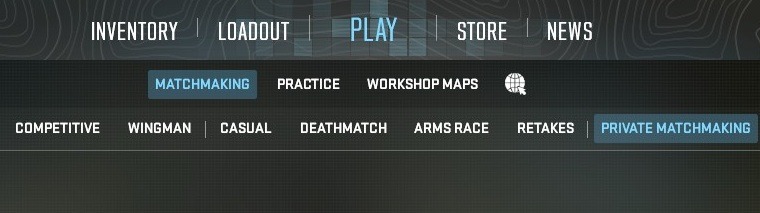
From the main menu, click on “Play” at the top-middle of your screen, select “Matchmaking” and “Private Matchmaking.”
You’ll see the Private Matchmaking screen pop up, where you’ll instantly notice a matchmaking code, your profile, and three options, namely:
- Create A Private Matchmaking Pool – By default, you are already here. Choose this option to generate a new matchmaking code.
- Join Your Steam Group’s Pool – Every Steam Group you are a part of has its own custom pool. You can select this option and choose which Steam Group you’d like to play with.
- Manually Enter A Code – If you have a code from someone else, you can enter it to join their matchmaking pool.
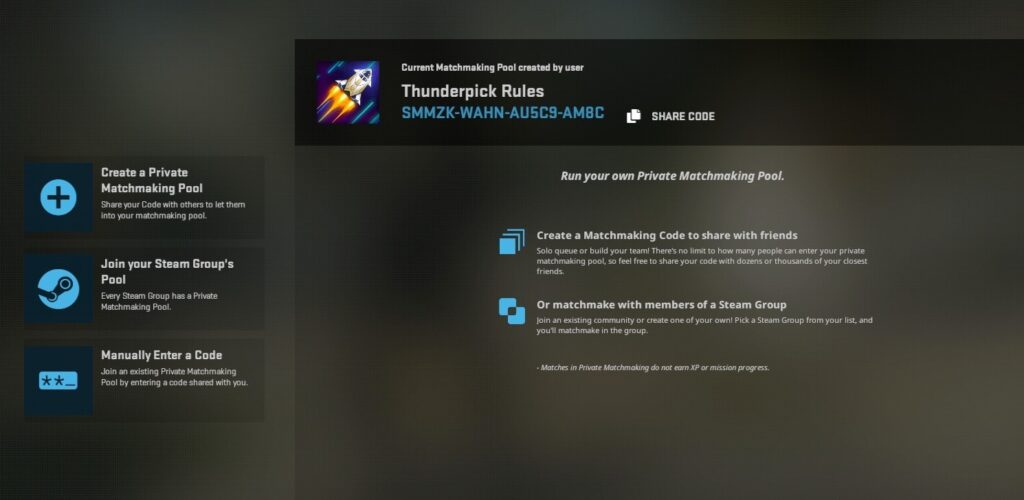
Share your code with friends or your gaming community. Once there are enough players in your pool (10 or more online), you can all coordinate and click the green “GO” button at the bottom-right of your screen.
CS2 will automatically match everyone in your private pool, where you can enjoy an official match akin to CS Premier.
A CS2 private matchmaking pool can have thousands of players. It’s akin to creating your own matchmaking community where players compete in private matches. The only caveat is: you do not earn XP or mission progress for participating.
Pro tip: Use the best CS2 settings for a smooth experience on custom maps, and check out our guide to playing CS2 to improve on the basics.
How To Make A Private Lobby Match In CS2
Want to create a private match within a minute of launching CS2? No problem!
On the right-hand side of your screen, click on the friend(s) you want to invite. Wait for them to accept the party invite. Party size is limited to five players.
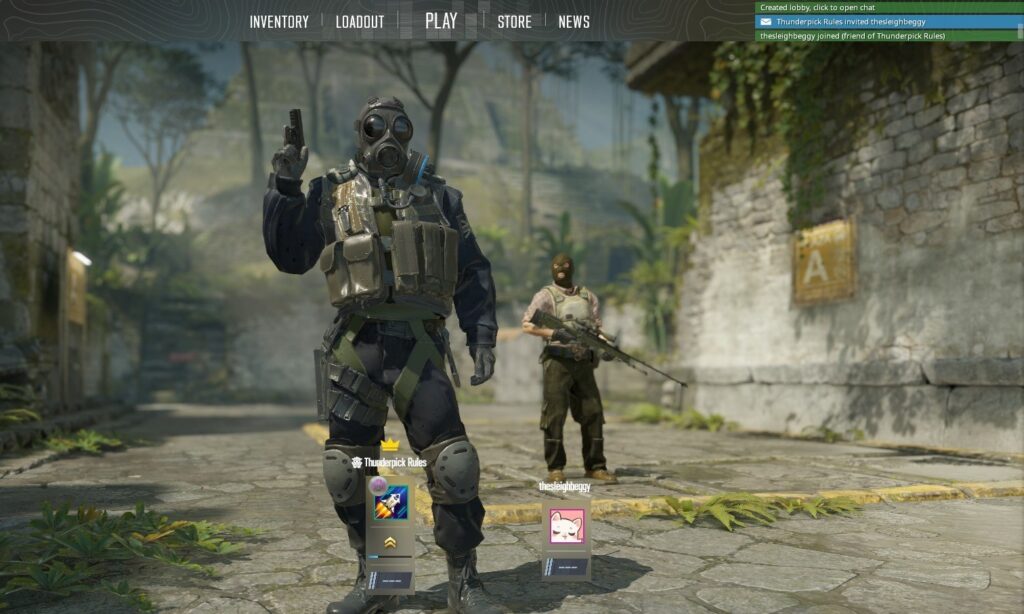
Ensure that you’ve untoggled the “Open Party” option so that only those directly invited to the party can join your lobby.
Click on Play, select Practice, and Deathmatch (or any other preferred mode). Click on the green “GO” button, and both you and your friend will enter the match.
You’ll notice you and your friend spawn alongside eight bots. Press the Tilde (~) key to open the CS2 command console, and type in bot_kick followed by pressing the Enter key. Now, you are in a 1v1 Deathmatch with your friend. Enjoy!
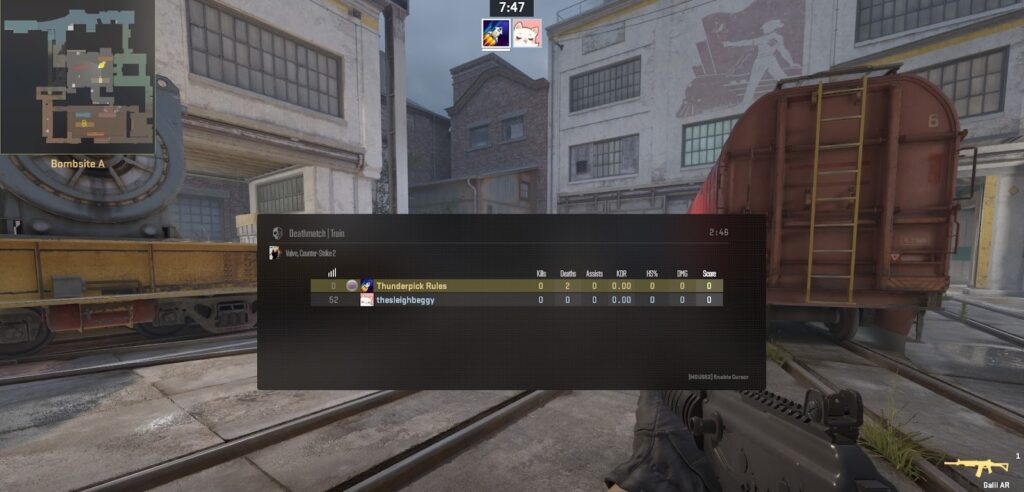
Custom Workshop Maps in Private Matches
You can, and definitely should, check out custom workshop maps via private matches. Some custom maps are designed specifically for training, such as improving your aim or testing crosshair setups.
We’ve got some solid CS2 custom Workshop Maps specifically for training to check out below.
- crashz’ Crosshair Generator v4
- Aim Botz – Aim Training
- Refrag.gg Warmup Map
- Recoil Master – Spray Training
- DHL Skills Lab
To play custom Workshop Maps via a private CS2 match, follow the steps outlined below.
- Navigate to the CS2 Workshop page on Steam.
- Search for the CS2 custom maps you want to play and subscribe.
- Launch CS2.
- Via the in-game friend list on the right-hand side, invite some friends.
- Wait for your friend to accept the party invite.
- Click the “Play” button and then “Workshop Maps.”
- Select a custom map.
- Click on the big green “GO” button at the bottom-right corner of your screen.
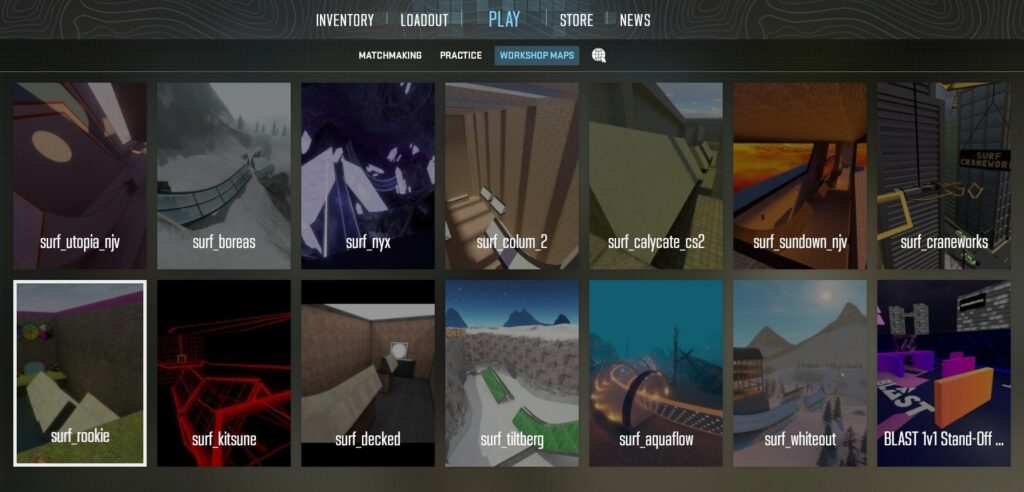
You’ll notice our expert has many surf maps installed. It’s super fun! Check out our complete guide on how to surf in CS2 today.
Third-Party Custom CS2 Private Matches
Looking for the highest level of customizability without having to punch in dozens of console commands? Don’t have the time or expertise to go through the extremely technical process of hosting your own dedicated servers? That’s where third-party services, where you can host custom, private CS2 matches, come into play.
A solid option for highly customizable matches boasting dozens of options, from match length to kill count, and “fun mode” options such as unlimited ammo/grenades, you might want to check out Xplay.
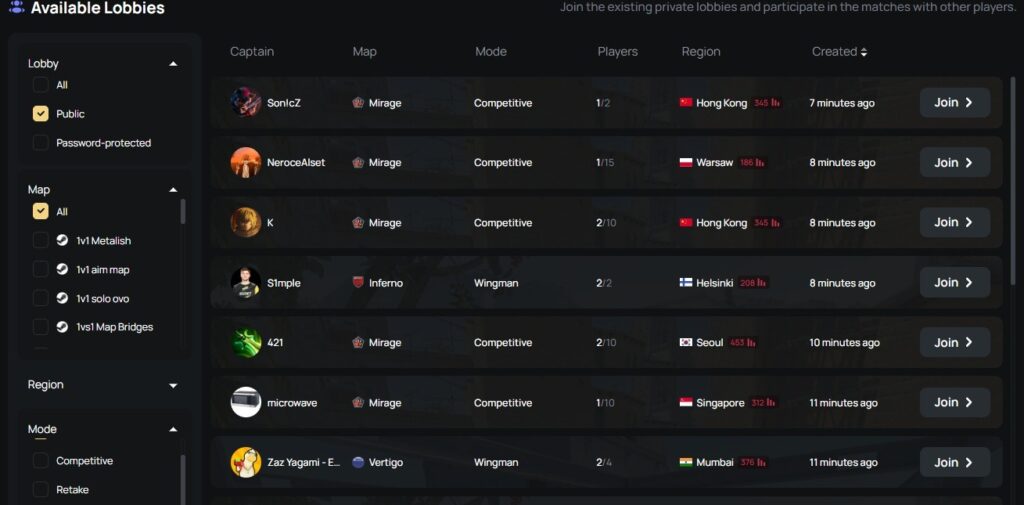
Xplay allows those without any technical know-how to create custom CS2 private matches and invite their friends to join in the action. You can customize your matches or join others using a simple UI.
If you are looking for the best pro CS2 community, we recommend joining FACEIT, where you can also create custom matches. The focus of FACEIT, however, is the highly competitive leaderboards.
Please note: Thunderpick is not responsible for any issues that may occur if you use third-party services to create customized CS2 private matches.
Customizing And Enhancing Your Private Match
Players are spoiled for choice when it comes to private matches in CS2. Let’s start with the basics.
Basic Options & Game Modes
The private matchmaking pool is primarily a way to enjoy a competitive game with members of a community, or, for example, nine of your friends.
When you choose to create your own lobby and invite some friends, more options become available.
Players can choose from different CS2 Game Modes, and select which maps or map pools they’d like to play on.
For example, you could enjoy Classic Competitive, Casual Mode, or options such as Deathmatch, Wingman, or Retakes. We highly recommend that beginners start with “Deathmatch” to improve their aim, while following our CS2 aiming tips and tricks.
Enjoy with bots, or knock them out of your private CS2 match with the bot_kick command.
Advanced Customization Features
Depending on which method you choose (third-party website like Xplay, dedicated servers, friend lobby), you also have advanced customization features available.
Advanced customization options to explore and test include, but are not limited to, the following:
- Round timer
- Freeze timer
- Specific weapon restrictions, for example, no AWPs.
- Unlimited Cash
- Unlimited Ammo
- Friendly Fire (On or Off)
- Starting cash.
Custom maps from the Steam Workshop are tailor-made with specific gameplay elements in mind, for example, 1v1’s, surfing, and aim practice.
Pro tip: Use CS2 console commands to finetune and enhance your experience.
Inviting Friends & Managing Communication
At the core of making a private match work in CS2 is inviting your friends and managing communication aspects.
Sending Friend Invites With Codes & URLs
There are many ways to add friends to your Steam profile. To get started, hover your cursor over your username in Steam, and from the drop-down menu, select “Friends,” then “Add Friends.” You’ll see three options:
- Your Friend Code – Send the eight-digit code to your friends so they can add you. Alternatively, add them if they can provide their eight-digit Friend Code.
- Quick Invite – Steam generates a Friend Invite link that you can share on your favorite communication platform, from WhatsApp to Discord, email, SMS, or anywhere in between. We recommend caution, as sharing this link in a public place can result in hundreds of new “friends.” The link expires in 30 days.
- Search for your friends – Enter your friends’ usernames into the search bar to find them. Ensure their username/profile matches precisely so you don’t invite an unknown with the same name.
There’s a cap of 250 friends on Steam when you first start out. As your profile level increases, you can add more friends.

Using Voice & Communication Tools
To fully enjoy a private match in CS2, communication is key at every stage, from creation to gameplay. Use in-game text chat or voice chat to talk to your friends during a private match, and while setting up the lobby. If you’re not using something like Discord, in game chat will help with coordination and having a little more fun with strangers.
Find out if your voice chat is enabled and working properly by visiting the in-game settings menu and navigating to the Voice tab under Audio. We recommend the following settings:
- Other Player Voice Volume: 100%
- Voice / Microphone Mode: Push To Talk (you can set a specific keybind)
- Voice Input Audio Device: Default Device
- Hear My Own Voice: Off
- Streamlined Push To Talk: No
- Microphone Trigger Threshold: -120
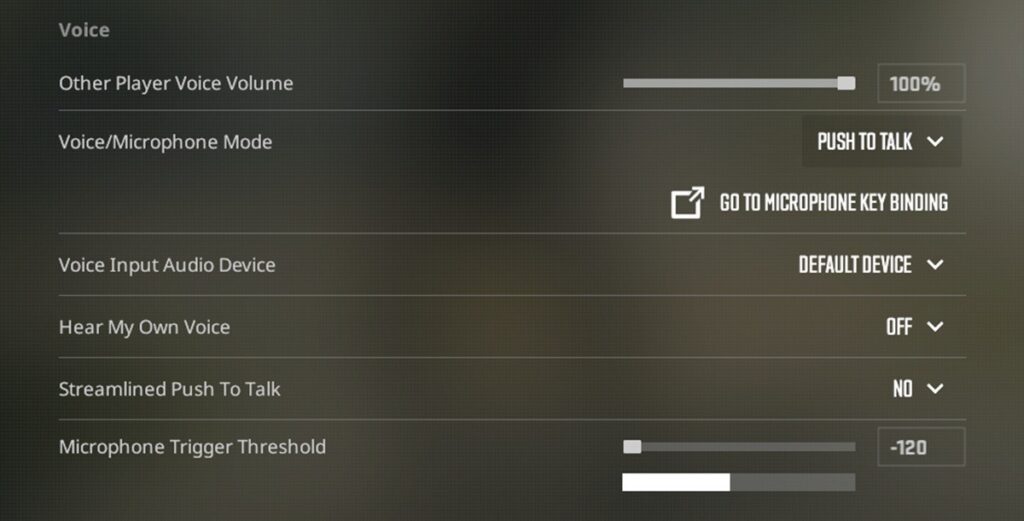
Alternatively, use your favorite third-party chat/voice software to communicate. The advantage of third-party software is that friends can communicate with one another outside the game and the Steam ecosystem.
Best Practices For Fun & Competitive Private Matches
For a great experience, we have some general best practices to share. These should help you enjoy private matches in CS2 while avoiding friction.
Schedule Your Private Matches
There’s nothing worse than wasting precious hours of game time waiting for someone to join. We highly recommend scheduling private matches with precise start times/dates to avoid waiting in an empty lobby.
Communicate Interest
If you are looking to make a private match in CS2 or join one of your friends, ensure you’ve communicated your interest clearly. For example, let them know you want to play 1v1’s or check out a custom map.
Agree On The Rules
Before a private match starts, all participants must discuss and agree on the rules. A good example is Friendly Fire. While competitive modes always have the option turned on, one can turn it off in private matches if everyone participating agrees.
Join A Like-minded Group
There are hundreds of thousands of community groups on Steam. To find a nice, big custom pool, join an active and like-minded community group. It’s a great way to meet new friends and show off your CS2 skills.
Have Fun
Most importantly, remember to have fun. Private matches are designed to encourage experimentation, with the variety of customization options and experiences available in Workshop Maps. After all, you can’t lose CS Rating or Rank, and there is no XP at stake.
FAQs About CS2 Private Matches
To finish off proceedings, we’ve added a handful of frequently-asked questions (FAQs) and answers about creating private matches in CS2 below.
How Do I Make A Private Match Fast In CS2?
The fastest way is to simply invite someone via your friends list, click Play, choose Deathmatch, and untoggle the “Open Party” option for a private match limited to only your party.
Do I Need To Add Friends For Private Matches?
No, you don’t necessarily need to add friends. As long as someone has your private matchmaking pool code or is part of the same Steam community, they can join in.
Can I Password-Protect My Lobby?
You can password-protect dedicated servers or lobbies created via a third-party website such as Xplay. For private matches, check the “Private Pool Password” option and enter your desired password.
What Are The Player Limits For Private CS2 Matches?
There’s a player limit of 10 for private matchmaking pool matches. If you run a dedicated server or use a third-party platform, the player limit can increase to 32. For a private lobby where you simply invite friends, the party limit is five.
How Do I Organize A Quick 1v1 Match?
The quickest possible way to play a 1v1 match is to invite a friend, select a Workshop map, and choose your favorite custom 1v1 map. Check out our dedicated guide to 1v1 in CS2, which digs deeper to reveal every step and detail.
Can I Play On Community-Created Maps?
Yes, you can. We highly recommend checking out the best CS2 custom maps via the Steam Workshop.
Always practice Responsible Gambling and check out our latest promo offers and boosts. T&Cs apply. 18+ to play.
